
## Performing a peg-out transaction using Ledger and Liquality
The Liquality Wallet is a browser extension for accessing Bitcoin, Rootstock, and Ethereum applications.
:::warning[Warning]
Liquality Wallet has been discountinued. See section on [Supported wallets](/resources/guides/powpeg-app/advanced-operations/supported-wallets) by the PowPeg.
:::
We will perform a peg-out transaction using the Ledger Hardware Wallet and Liquality.
> See [How to perform a peg-in transaction using Ledger](/resources/guides/powpeg-app/pegin/ledger/)
### Get started
To perform a peg-out transaction using the Ledger device with Metamask, follow the steps below:
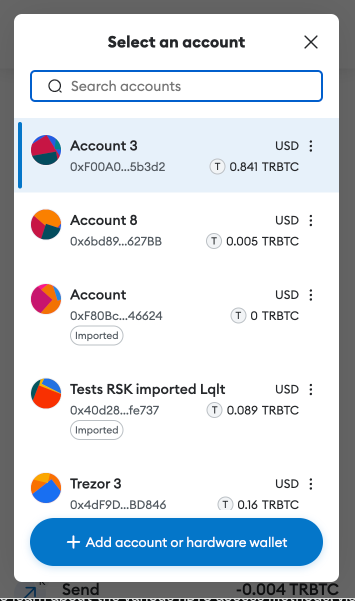
Step 1: Open Metamask click on select account, and then in the **Add account or hardware wallet** button:
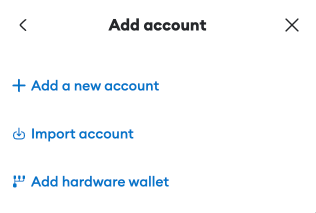
 Step 2: Select **Add hardware wallet** option:
 Step 3: The user will be redirected to wallet selection page:

To connect with a Trezor Wallet:

To connect with a Ledger Wallet:

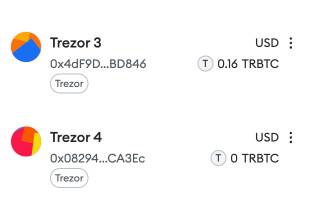
Now you can see "Ledger" or "Trezpr" label in your Metamask accounts
Step 3: The user will be redirected to wallet selection page:

To connect with a Trezor Wallet:

To connect with a Ledger Wallet:

Now you can see "Ledger" or "Trezpr" label in your Metamask accounts
 ----
## Next
* See [Performing a peg-out transaction using Trezor](/resources/guides/powpeg-app/pegout/trezor/)
* See [Performing a peg-out transaction using Ledger](/resources/guides/powpeg-app/pegout/ledger/)
----
## Next
* See [Performing a peg-out transaction using Trezor](/resources/guides/powpeg-app/pegout/trezor/)
* See [Performing a peg-out transaction using Ledger](/resources/guides/powpeg-app/pegout/ledger/)